
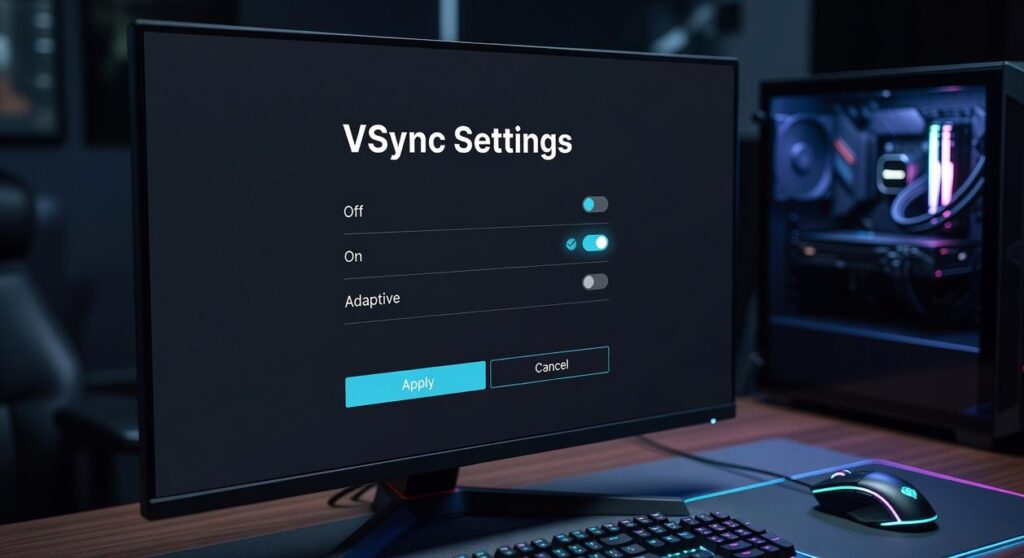
You’ve invested in a high-performance gaming monitor—but are you truly using the best monitor settings for gaming? Factory presets are built for general viewing, not for the fast reactions and visual clarity competitive play demands. If you’re dealing with motion blur, input lag, washed-out colors, or screen tearing, your settings—not your skill—could be holding you back.
This guide is designed to fix that. We’ll walk through the exact display, color, refresh rate, and GPU adjustments that unlock smoother motion and sharper visuals. Based on extensive hands-on hardware testing and real-world optimization, these steps will help you achieve a calibrated, responsive, and competition-ready gaming experience.
First Things First: Mastering Your Monitor’s On-Screen Display (OSD)
Before you tweak software, start with the hardware. Your monitor’s On-Screen Display (OSD)—the built-in menu controlled by physical buttons or a joystick—is the command center for core performance settings. Think of it as BIOS for your screen (less scary, more colorful).
Refresh Rate: 60Hz vs 144Hz vs 240Hz
First, set the maximum refresh rate. Refresh rate, measured in hertz (Hz), is how many times per second your screen updates the image. 60Hz shows 60 frames per second; 240Hz shows 240. Side-by-side, 60Hz feels like standard cable TV, while 240Hz feels like a live sports broadcast in hyper-clarity. Higher refresh rates reduce motion blur and improve reaction time (NVIDIA confirms smoother motion at higher Hz improves perceived responsiveness).
Some argue anything above 144Hz is overkill. However, in competitive shooters like Valorant or CS2, the jump from 144Hz to 240Hz can mean spotting a strafing enemy a split second sooner. That’s why this is foundational to the best monitor settings for gaming.
Response Time (Overdrive): Normal vs Fastest
Next, configure response time—also called overdrive, which accelerates pixel transitions to reduce ghosting (motion trails behind objects). Set it too low and you get smearing; too high and you’ll see inverse ghosting (bright halos). Compare “Normal” vs “Fastest” using the UFO Test. In most cases, “Fast” is the sweet spot.
Pro tip: Test in an actual match, not just menus.
Picture Modes: Preset vs Custom
Finally, avoid generic “FPS” presets. They often crush blacks and oversaturate colors. Instead, choose “Standard” or “Custom” for full control. After all, clarity beats gimmicks.
And while you’re optimizing, don’t forget your desk—these cable management hacks for a cleaner gaming desk can eliminate distractions between you and the win.
Fine-Tuning for a Real Competitive Edge
Once your baseline is locked in, dialing in the details is where you unlock the best monitor settings for gaming and turn decent visuals into a tactical advantage. This isn’t about making your game prettier. It’s about seeing first, reacting faster, and winning more fights.
Brightness: Set this according to your room lighting. You want enough illumination to distinguish dark grey from true black without washing out the screen. When calibrated correctly, you’ll spot movement in shadowed hallways and dim corners before your opponent does. That split-second recognition can mean the difference between clutching and respawning. (If your eyes feel tired after an hour, it’s probably too high.)
Contrast: Start around 80–90% and raise it until bright elements like clouds, muzzle flashes, or explosions retain detail. Higher contrast sharpens separation between objects, helping enemies stand out against complex backgrounds. The benefit? Cleaner visual layers and less visual guessing during chaotic fights.
Black Equalizer / Shadow Boost: Use this sparingly. A low setting, around 1–3 out of 10, gently lifts dark zones so hidden players become visible. Push it too far and everything turns flat and grey, reducing depth perception. Subtle adjustments give you awareness without sacrificing image quality.
Color Vibrance / Saturation: Increase in small increments to make character models and key environmental cues pop. When tuned carefully, targets are easier to track across foliage, smoke, or urban clutter. Pro tip: stop increasing the moment skin tones or HUD elements look unnatural.
Win more.
Sync It Up: GPU Settings for a Tear-Free Experience
You can tweak in-game sliders all day, but if your GPU and monitor aren’t synced, you’ll still see tearing—that horizontal split where the top and bottom of the screen don’t match. Screen tearing happens when your graphics card (GPU) sends frames faster than your monitor can display them. The fix? Make them work in lockstep.
First, enable G-Sync or FreeSync (Adaptive Sync) in your NVIDIA Control Panel or AMD Radeon Software. Adaptive Sync dynamically matches your monitor’s refresh rate (how many times per second it updates, measured in Hz) to your GPU’s frame rate (frames per second, or FPS). The result is fluid motion without stutter or tearing (like butter, but digital).
Some players argue you don’t need Adaptive Sync if your PC already pushes high FPS. That’s partly true—high frame rates reduce tearing visibility. However, FPS fluctuates in real gameplay, especially during explosions or crowded fights. Adaptive Sync keeps things smooth when performance dips.
For the ultimate low-lag, no-tear setup, follow this formula:
- Enable G-Sync/FreeSync in your GPU control panel.
- Enable V-Sync in the GPU control panel (not in-game). V-Sync caps frames to your monitor’s maximum refresh rate, preventing tearing at the ceiling.
- Set a frame rate limit 3–5 FPS below your monitor’s max refresh rate. For example, cap at 141 FPS on a 144Hz monitor.
This keeps your system inside the Adaptive Sync range, giving you tear-free visuals without the heavy input lag V-Sync used to cause.
Next, activate Low Latency modes. Turn on NVIDIA Reflex Low Latency (On + Boost) or AMD Radeon Anti-Lag. These reduce system latency—the delay between your mouse click and the action appearing on screen. In competitive shooters, that delay can decide fights.
Pro tip: After applying these changes, test in a fast-paced game and monitor FPS stability. Dial in these alongside the best monitor settings for gaming to lock in a consistently smooth experience.
Your Competitive Advantage is Now Calibrated
You came here looking for the best monitor settings for gaming, and now you have them dialed in. No more washed-out colors, input lag frustrations, or missed visual cues costing you crucial moments. Your display is no longer holding you back—it’s working for you.
Every tweak you made translates into faster reactions, sharper clarity, and smoother performance where it matters most. That edge is real.
Now it’s time to put it to the test. Launch your favorite competitive title and experience the difference firsthand. If you want more pro-level setup optimization trusted by thousands of serious gamers, explore our latest guides and level up your entire rig today.